Wednesday, 9 September 2015

Your Credentials Did Not Work!

Well, a classic solution to a classic problem.


Click on Start button, and search for gpedit.msc. Open.


In Computer Configuration, expand Administrative Templates.

Expand System.

Expand Credentials Delegation.


Double click Allow Delegating Saved Credentials and enable this.


Under add servers, I'm placing a wildcard just to allow every servers that I wanted the password remembered.


Click OK and then Apply.

Repeat the same with Allow Delegating Saved Credentials with NTLM-only Server!


Friday, 28 August 2015

Installing Firefox In Kali Linux

Ok, the next problem that I am facing right now is with the absence of a web browser for some surfing.

Here are the steps to download and install Firefox in your Kali Linux box:

Use the wget command to fetch the tar file from Firefox official site. Example:

xox@XOX-KLINUX:~$ wget https://download-installer.cdn.mozilla.net/pub/firefox/releases/40.0.3/linux-x86_64/en-US/firefox-40.0.3.tar.bz2
--2015-08-29 02:28:50--  https://download-installer.cdn.mozilla.net/pub/firefox/releases/40.0.3/linux-x86_64/en-US/firefox-40.0.3.tar.bz2
Resolving download-installer.cdn.mozilla.net (download-installer.cdn.mozilla.net)... 117.18.232.191
Connecting to download-installer.cdn.mozilla.net (download-installer.cdn.mozilla.net)|117.18.232.191|:443... connected.
HTTP request sent, awaiting response... 200 OK
Length: 48265357 (46M) [application/x-bzip2]
Saving to: ‘firefox-40.0.3.tar.bz2’

firefox-40.0.3.tar.bz2                               100%[=======================================================================================================================>]  46.03M  3.50MB/s   in 13s  

2015-08-29 02:29:04 (3.42 MB/s) - ‘firefox-40.0.3.tar.bz2’ saved [48265357/48265357]

Unzip the tar file into the /usr/local directory, make sure you run this as root!:

root@XOX-KLINUX:/home/xox# ls
Desktop  Documents  Downloads  firefox-40.0.3.tar.bz2  Music  Pictures  Public  Templates  Videos
root@XOX-KLINUX:/home/xox# cd /usr/local
root@XOX-KLINUX:/usr/local# tar xjf /home/xox/firefox-40.0.3.tar.bz2
root@XOX-KLINUX:/usr/local# ls
bin  etc  firefox  games  include  lib  man  sbin  share  src

And you're done!

Adding Users In Kali Linux

For my work purpose, I need to use Kali Linux now. Been experimenting with it a little bit, I applied my experience to add user within the OS but it seems not to go through at all.

Had quite a hard time and around half an hour spent thinking on the solution, here are the steps for the unfortunate :P

First, by default, you should be logging into Kali Linux as a root user. I am using Kali with the below version output:

root@XOX-LINUX:~# uname -a
Linux XOX-LINUX 4.0.0-kali1-amd64 #1 SMP Debian 4.0.4-1+kali2 (2015-06-03) x86_64 GNU/Linux

root@XOX-LINUX:~# lsb_release -a
No LSB modules are available.
Distributor ID: Kali
Description: Kali GNU/Linux 2.0
Release: 2.0
Codename: sana

And here are the steps for new user creation:

root@XOX-LINUX:~# adduser xoxuser
Adding user `xoxuser' ...
Adding new group `xoxuser' (1001) ...
Adding new user `xoxuser' (1000) with group `xoxuser' ...
Creating home directory `/home/xoxuser' ...
Copying files from `/etc/skel' ...
Enter new UNIX password:
Retype new UNIX password:
passwd: password updated successfully
Changing the user information for xoxuser
Enter the new value, or press ENTER for the default
Full Name []: Bob Nuxi
Room Number []:
Work Phone []:
Home Phone []:
Other []:
Is the information correct? [Y/n] y

Verification of new user:

root@XOX-LINUX:/etc# cat passwd | grep xoxuser
xoxuser:x:1000:1001:Bob Nuxi,,,:/home/xoxuser:/bin/bash

I'll edit this posting if any future changes are seen, but for now, hope it helps!

Sunday, 16 August 2015

Getting Custom Display Resolution For Command And Conquer Generals

Well, this topic is going to deviate a little bit from my work. Having quite a stressful week, some old school games would be fun. And this time I chose to start back playing C&C Generals.

Since I'm installing the data files within a VM, the resolution of that VM is 1916x968. Was not able to get the right resolution at first.

Okay, this is what I did. Hope it's going to be an useful reference though.

First, you need to set the resolution within the game back to 800x600 and exit.

Navigate to My Documents after that, look for a folder called "Command and Conquer Generals Data".

Locate the Options.ini file.


Open the file using notepad.

The output you'll see:
AntiAliasing = 3
CampaignDifficulty = 0
GameSpyIPAddress = 0.0.0.0
Gamma = 50
IPAddress = 0.0.0.0
IdealStaticGameLOD = High
LanguageFilter = false
MusicVolume = 55
Resolution = 800 600
SFX3DVolume = 79
SFXVolume = 71
ScrollFactor = 50
SendDelay = no
StaticGameLOD = High
VoiceVolume = 70

I changed that part, and it looks like below:

AntiAliasing = 3
CampaignDifficulty = 0
GameSpyIPAddress = 0.0.0.0
Gamma = 50
IPAddress = 0.0.0.0
IdealStaticGameLOD = High
LanguageFilter = false
MusicVolume = 55
Resolution = 1916 968
SFX3DVolume = 79
SFXVolume = 71
ScrollFactor = 50
SendDelay = no
StaticGameLOD = High
VoiceVolume = 70

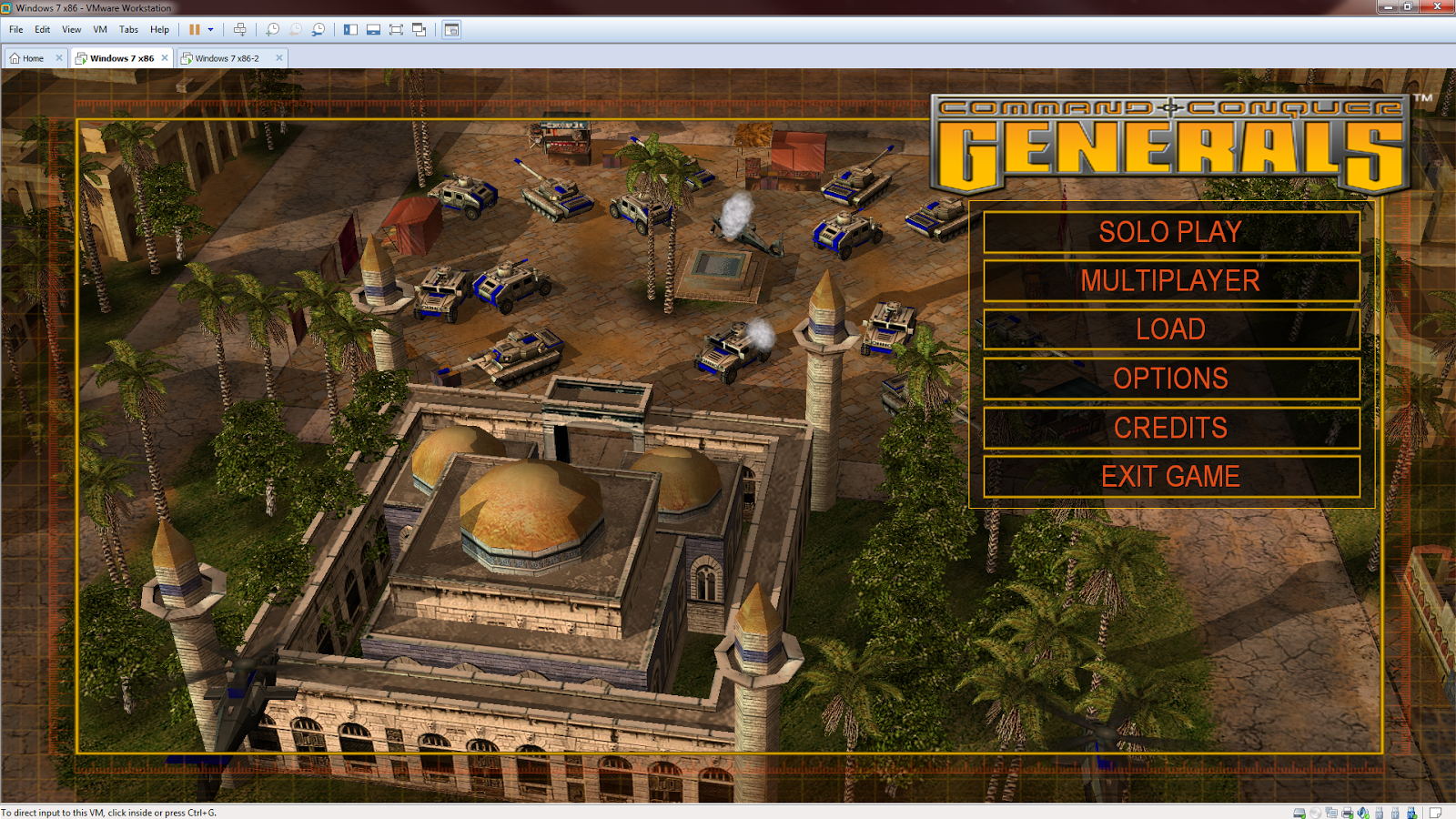
And I got what I want:


Cheerio!

Thursday, 6 November 2014

How To Add Your E-Mail Address To Outlook 2013 When You're Using Google Apps Mail

Bet the title says it all.

Well, I'm using Outlook 2013 for e-mail client as you can seamlessly use multiple accounts at once.

Work account, personal account, business account, all in one....

Yesterday, I bought the Google Apps package with e-mail as well as custom domain to jump start my side business. But then, when I try to add the account to Outlook 2013, it failed.

Here are the ways on how to do this, not that complex, but it involve a few steps.

First, choose the manual set-up.


Then, choose POP or IMAP set-up.


Enter your details as per below.


For those using Google Apps with custom domain (I bought mine from Google), here are somethings to note:

  • Your Name would be your display name
  • E-mail address would be the custom e-mail address chosen, for example test@yourdomain.com
  • Account type would be IMAP
  • Incoming mail server would be imap.gmail.com (not imap.yourdomain.com)
  • Outgoing mail server would be smtp.gmail.com (not smtp.yourdomain.com)
  • User name would be the same as your e-mail (test@yourdomain.com), do not put a single username without @yourdomain.com
  • Password would be your account password

Click on More Settings button.


Navigate to Outgoing Server tab, and follow the settings above. Do not choose use same settings as my incoming mail server as this would not allow your e-mail to be sent out.

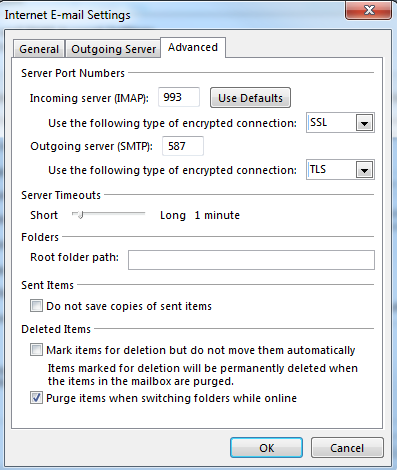
Next, click on the Advanced tab.


Make sure your settings are as above for the server port numbers.

Click OK, let the test run, if passed, then your account is ready to be used by Outlook 2013.

Cheers!


Sunday, 19 October 2014

Poor Graphic Performance GNOME On CentOS 7 With VMWare Workstation 10

A new issue.

Seems that my CentOS GNOME desktop is pretty slow and lagging.

Alright, for those who encounters the same issue, check you VM display settings.

First, power off your CentOS VM.

Navigate to Edit virtual machine settings:


Then, under the Hardware tab, choose Display. In 3D graphics section, tick the checkbox for Accelerate 3D graphics.


The GNOME graphic should improve once you boot your VM back.

No Network Adapter When Installing CentOS In VMWare Workstation 10

Earlier today I tried to get CentOS to run in my VMWare Workstation. Installation goes smooth, and finally is up and running.

Browse around a little bit, tried to update the packages, however failed.

Duh, no network adapter. Awesome. I thought I've made a mistake in configuring the VM networking settings.

Hmm, it is set to bridge, looks normal, what could go wrong? My other VMs are working fine.

Tried to run ifconfig -a, no network adapter listed. Alright, probably this is somehow caused by new kernel, I added the interface manually.

Still doesn't work.

Aargh, this is pretty frustrating. Time for some troubleshooting.

What I did was, prepare two VMs, both are installing from the image file.

One VM was set to Other Linux 3.x kernel 64-bit, the other was set to CentOS.

Yay! I saw my network adapter is detected in the Other Linux 3.x kernel 64 bit. But no luck with the CentOS selection.

So, what's the difference? Well, I pulled up the .vmx file within the Notepad++, and check for any differences.


The Other Linux 3.x kernel 64-bit has this coded into the .vmx:

ethernet0.virtualDev = "e1000"

The setting is still bridged.

The CentOS setting has this coded into the .vmx:

ethernet0.connectionType = "bridged"

Hmm, I saw a solution. If anyone do encounter this issue, install CentOS in your VMWare Workstation using the Other Linux 3.x kernel 64-bit.